> For the complete documentation index, see [llms.txt](https://docs.microside.com/llms.txt). Markdown versions of documentation pages are available by appending `.md` to page URLs; this page is available as [Markdown](https://docs.microside.com/programadores-pics-and-avrs/software-microside-v1.0/x-trainer-pic18f4550-45k50.md).
# X-TRAINER - PIC18F4550/45K50
1. Ejecuta el Software MICROSIDE v1.0.
{% hint style="warning" %}
**Requisitos:**
* Microcontrolador PIC18F4550 o PIC18F45K50 **precargado** con bootloader MICROSIDE en la tarjeta X-TRAINER.
* Sistema operativo Windows 8.1 o posterior.
{% endhint %}
2. Conecta la tarjeta **X-TRAINER** a tu computadora a través del cable USB.
3. Marca la casilla ***X-TRAINER PIC18F4550/45K50*** y da clic en ***Iniciar***.\
Una vez iniciado el programa se mostrará la siguiente ventana:
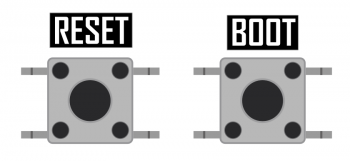
4. En la tarjeta **X-TRAINER** presiona los botones “**RESET**" y “**BOOT**” **al mismo tiempo**, después suelta “**RESET**” y luego “**BOOT**” (Se escuchará un sonido en Windows de cuando es detectado un dispositivo USB).
5. En la ventana del software da clic en el botón ***Programar***. \
Aparecerá “¡ **X-TRAINER detectado !**” en el cuadro de texto inferior como en la siguiente imagen:
6. Da clic en el botón pequeño con los tres puntos que se encuentra al lado derecho, se abrirá una ventana del explorador de archivos, selecciona el archivo .hex a programar en la tarjeta **X-TRAINER** y da clic nuevamente en el botón ***Programar***.
{% hint style="info" %}
En el cuadro de texto inferior se podrá visualizar el proceso de programación.
{% endhint %}
7. Cuando termine el proceso de programación y verificación aparecerá el mensaje\
“**¡ Programación correcta !**”.
8. Por último, una vez terminado el proceso de forma exitosa, la tarjeta **X-TRAINER** se **reiniciará** automáticamente para ejecutar el código programado.
{% hint style="warning" %}
**Nota:** Una vez terminada la programación, en el software aparecerá "**X-TRAINER no detectado**" debido a que se ha reiniciado.
Esto **NO** significa que se haya interrumpido la programación.
{% endhint %}
{% hint style="info" %}
Para volver a programar se debe realizar nuevamente la secuencia de botones ("RESET" y "BOOT").
{% endhint %}